Bombay YMCA - Generate a unified payment entry for all the outstanding Receipts
By Balaji Shinde on August 22, 2023
Intermediate- Create a single payment entry adjusting against multiple Receipts.
- If there are more than one unpaid/overdue receipts spanning of different months for a customer.
- The customer has made a single payment to settle all the dues at once, and we wish to generate a unified payment entry for all the outstanding receipts instead of creating separate payment entries for each individual receipt, to generate please proceed with the following steps.
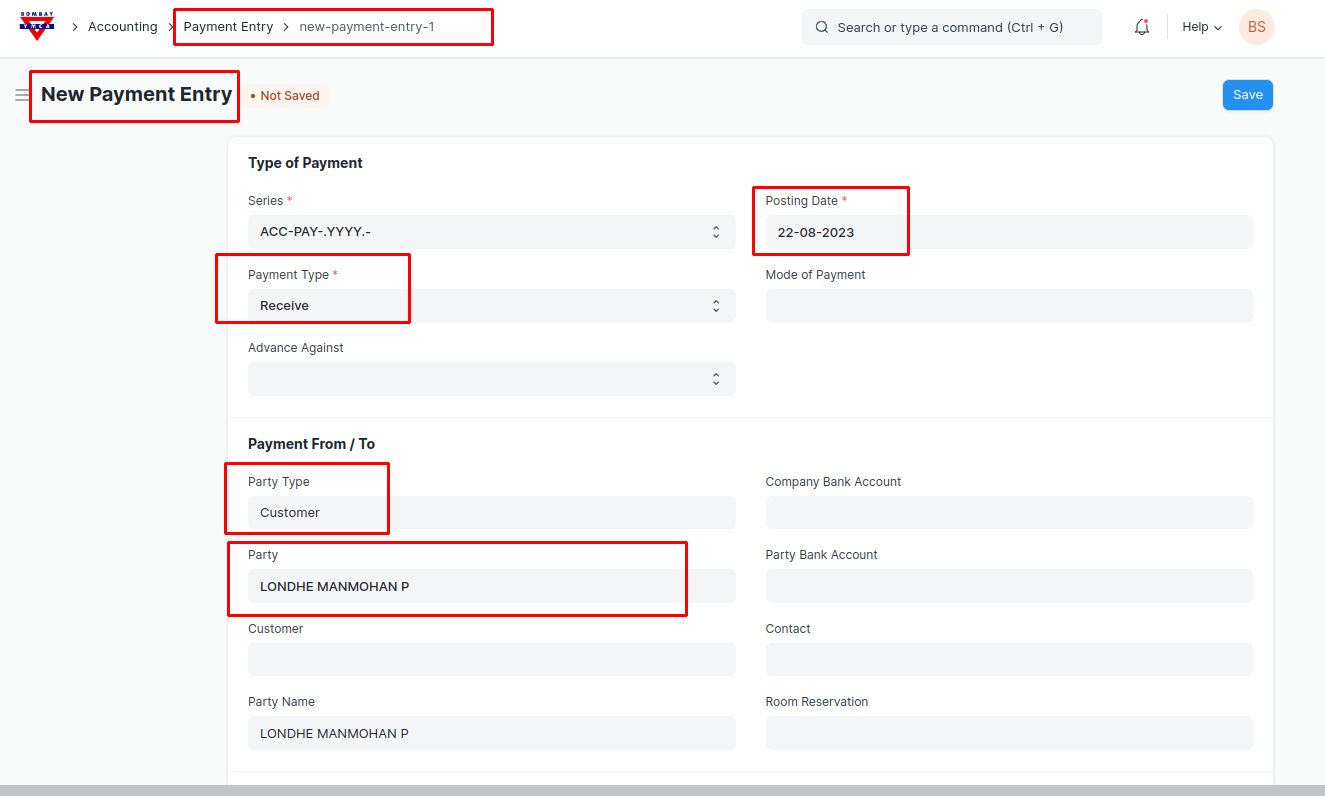
- Make a "New Payment Entry". Select a Party Type and Party.
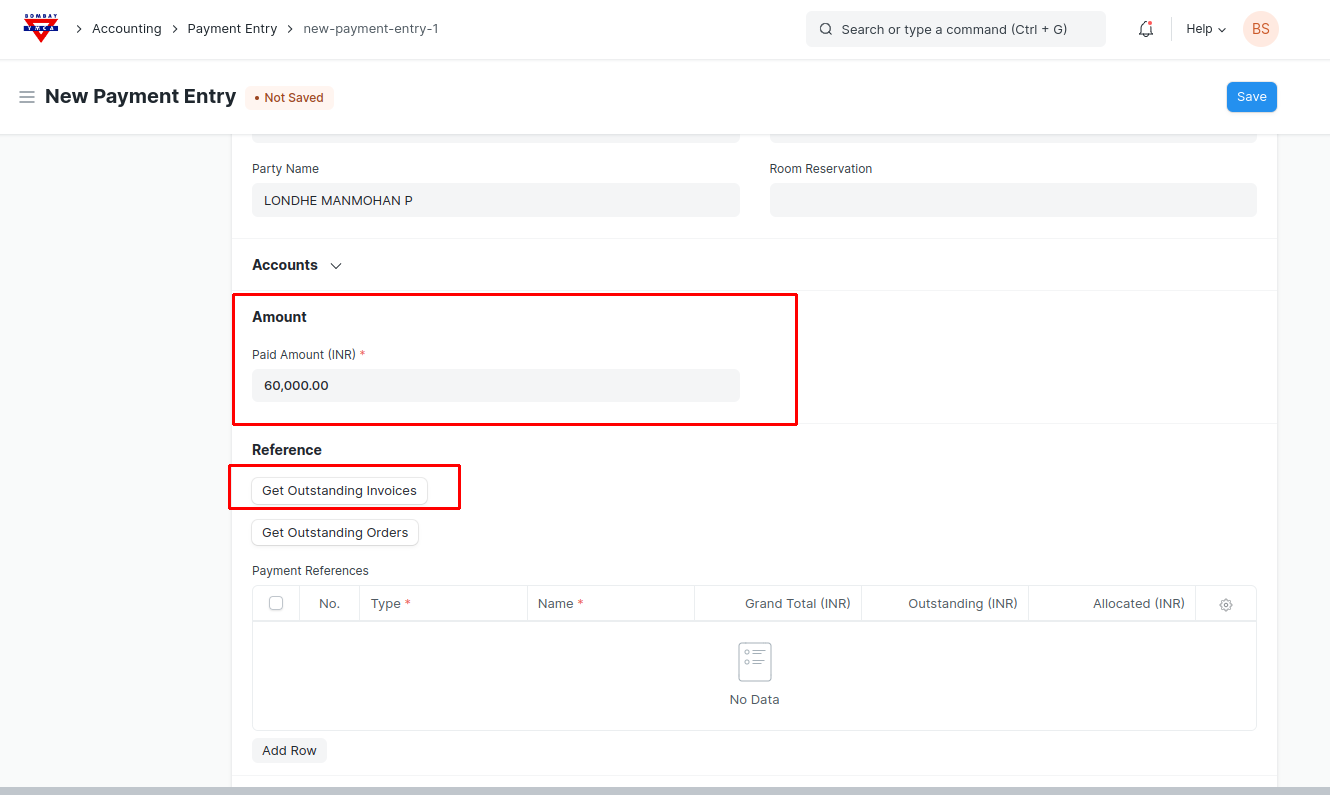
- Enter the Payment Amount paid by the Customer and Click on Get Outstanding Invoices Button.
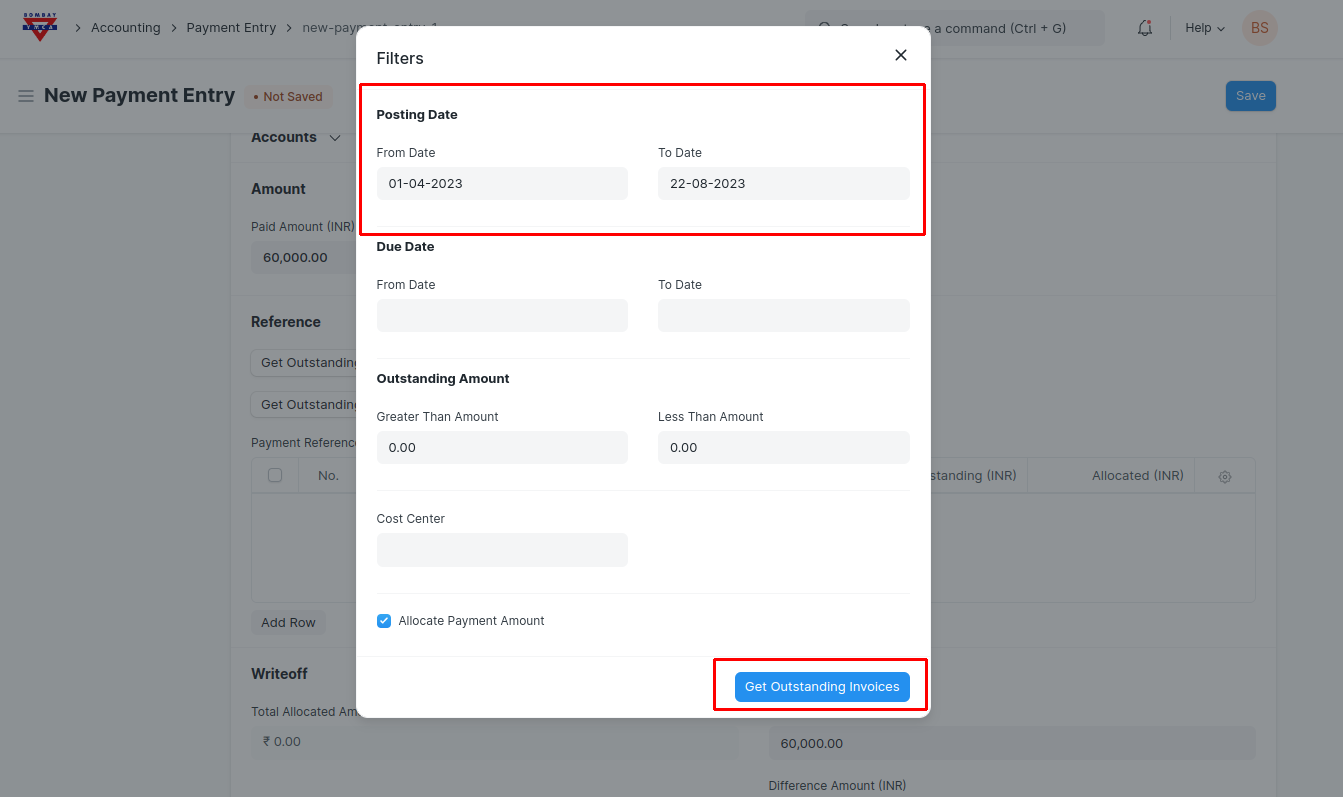
- By clicking on "Get Outstanding Invoices" button, a popup form will appear where you are required to specify a date range. This will enable retrieval of outstanding invoices/receipts falling within the provided date range. After filling date range click on below "Get Outstanding Invoices".
- All the Outstanding Invoices/receipts will be fetched for that customer with the Grand total and Outstanding Amounts of the respective Receipts/Invoices.
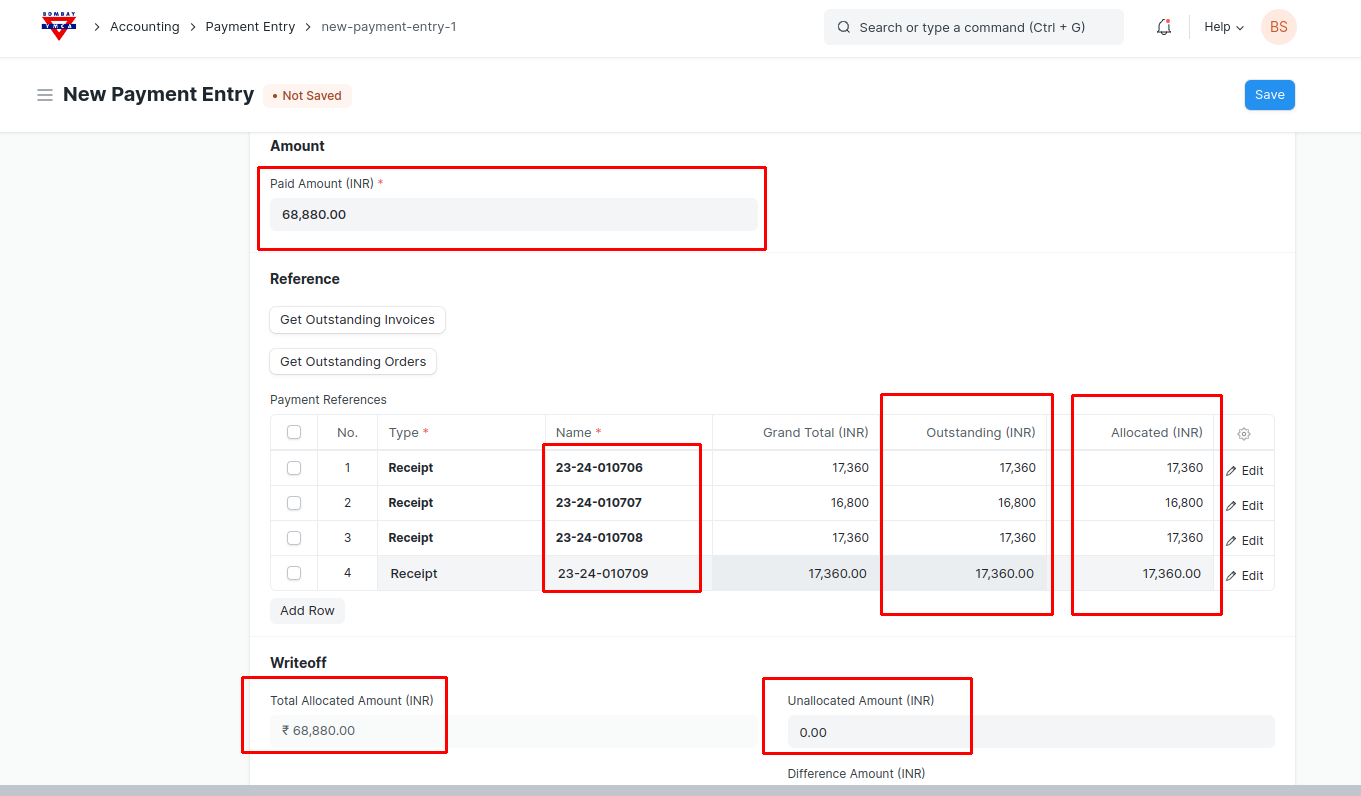
- Note : If in case customer paid more or less you can adjust the amounts and allocate accordingly to the receipts. There is an Allocated column next to outstanding amount column where you can allocate the paid amount to different Receipts.
- If the Customer Paid the Exact amount as the all unpaid/overdue receipts total outstanding amount. Then put the paid amount in Paid amount field, get the outstanding Invoices, the amount will automatically get allocated to each receipt and there will no any overdue and Unallocated amount.
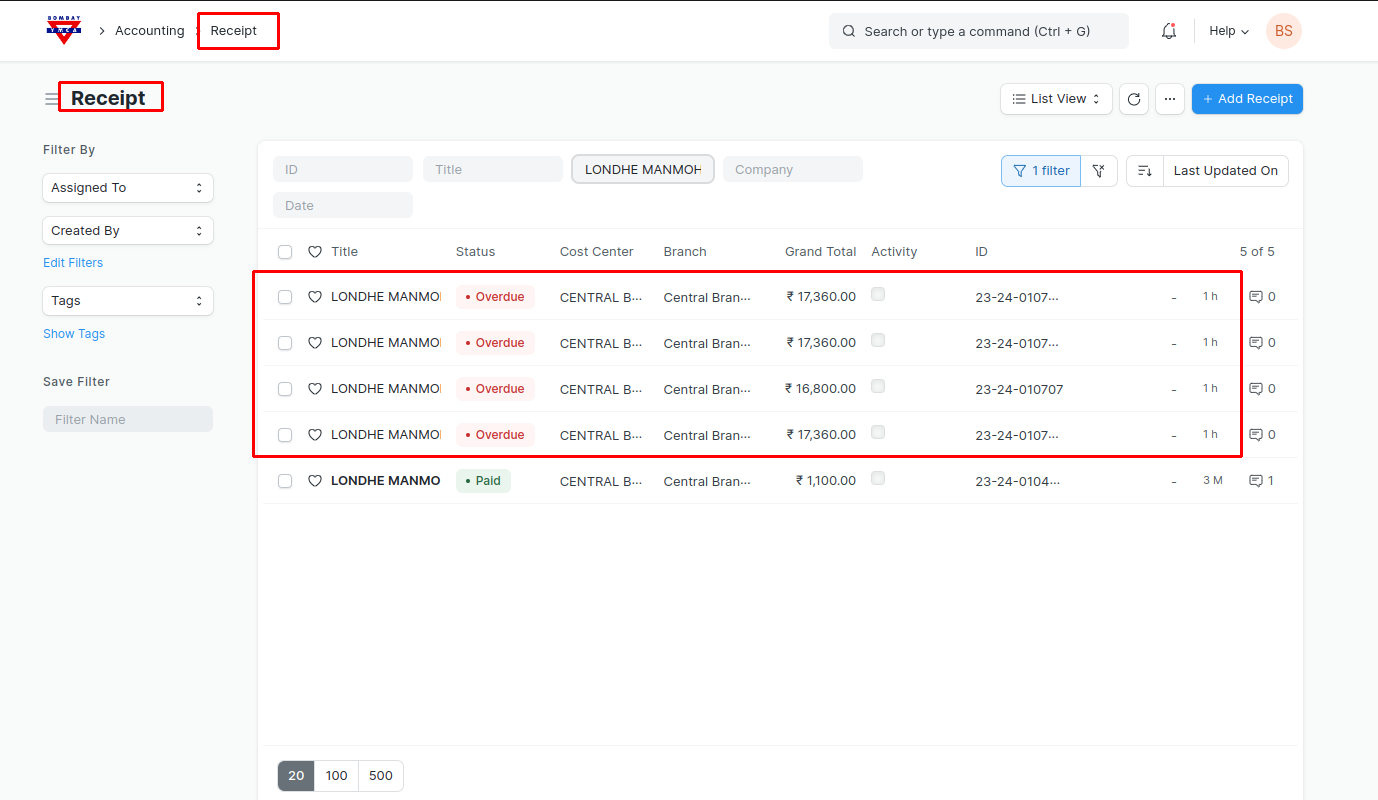
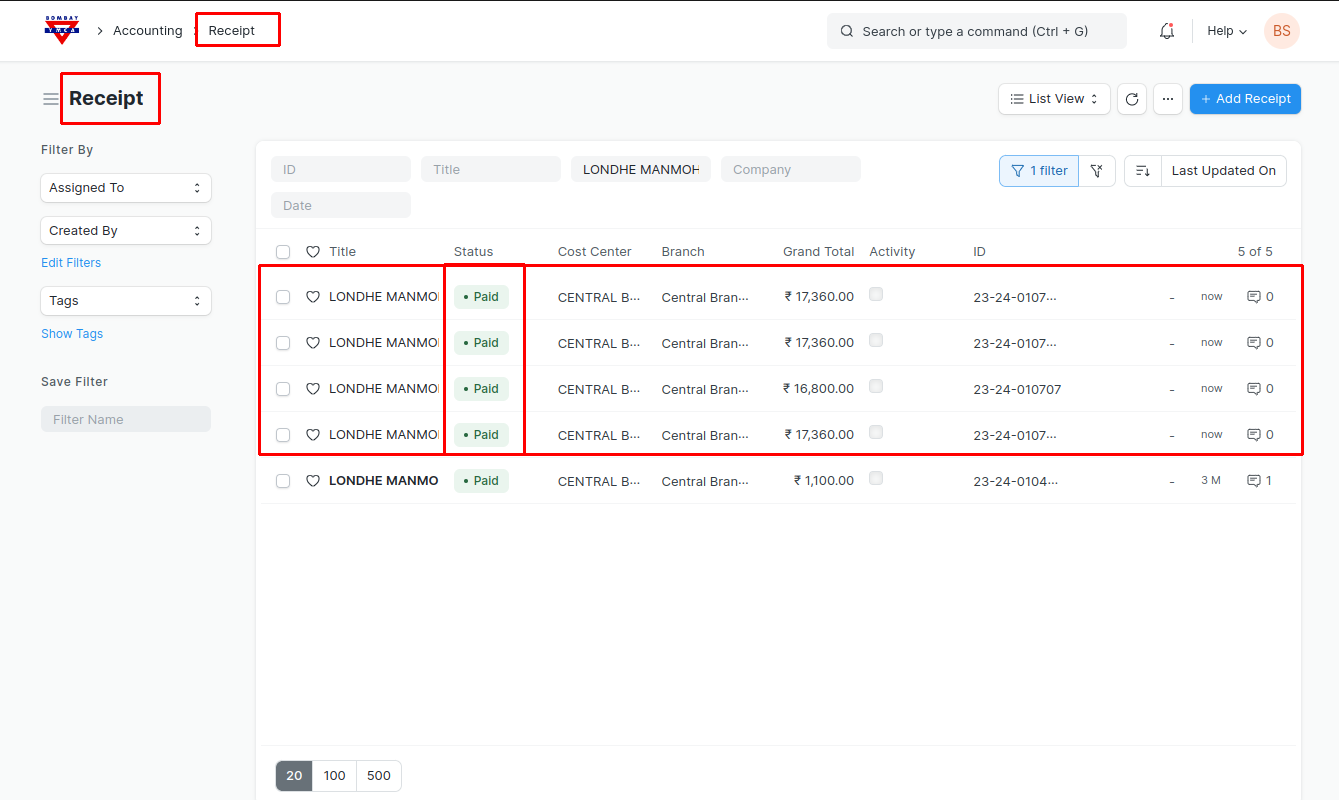
- Fill the other necessary details like account paid to, branch, cost centre etc. save and submit the Payment entry, the listed outstanding Receipts will get paid one Payment entry get Submitted.
- If the Customer Paid the Less amount than the total Outstanding amount of all the receipts. Then put the paid amount in Paid amount field, get the outstanding Invoices, you can check allocated amount to each receipt and modify accordingly.
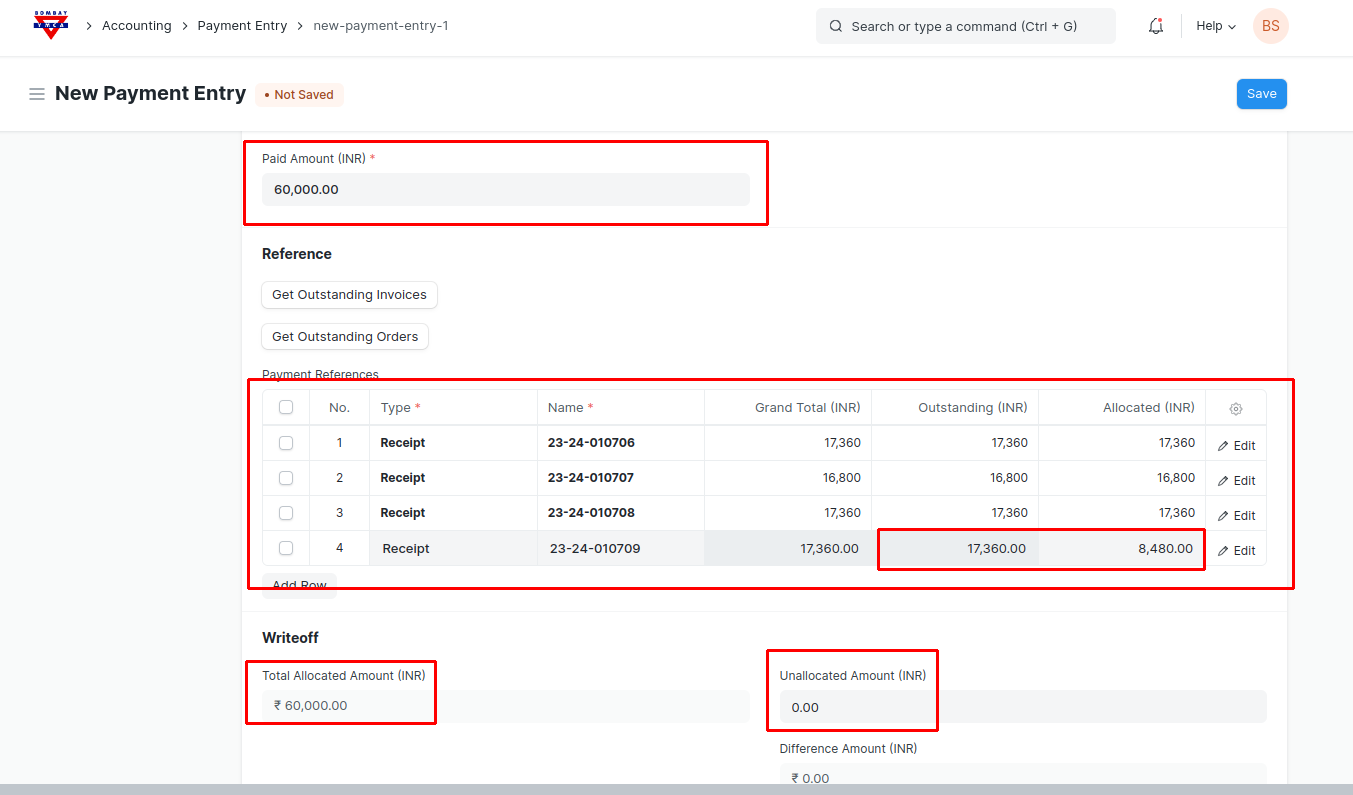
- If the Customer Paid the Excess amount than total outstanding amount of all unpaid/overdue receipts. Then put the paid amount in Paid amount field, get the outstanding Invoices, the amount will automatically get allocated to each receipt and remaining amount will go in the Unallocated amount as an advance.
- Unallocated amount will be advance, you can adjust the unallocated amount to the next receipts.
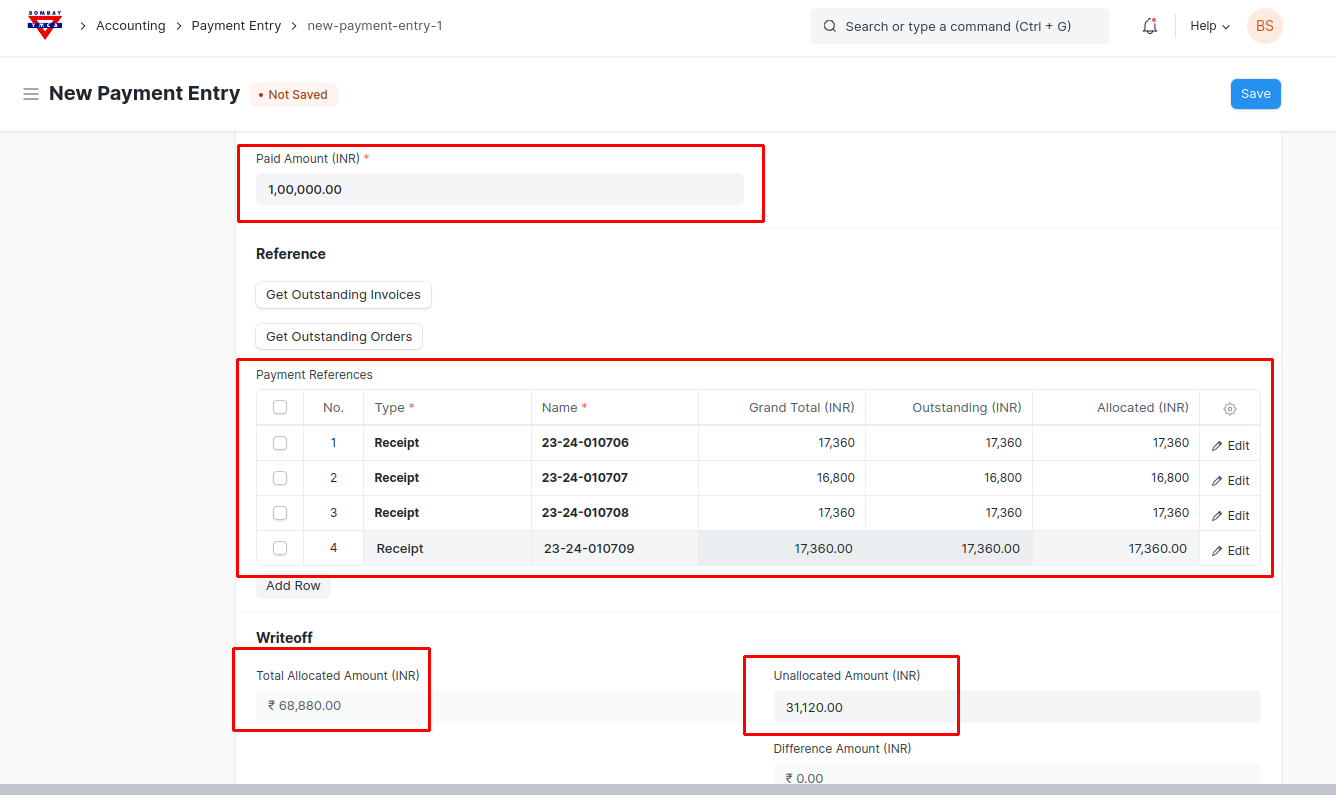
- Save and submit the Payment entry the Entry will get created for the listed Receipts.
*** End of the Document***
Was this article helpful?
More articles on Receipt