Bombay YMCA - Leave Management
By Reshma TW on July 17, 2023
BeginnerLeave Application:
This document can be created by an Employee to apply for Leaves for a particular time period.
To access Leave Application, go to:
Home > Human Resources > Leaves > Leave Application
Before creating a Leave Application, it is advisable you have the following documents:
- Department
- Leave Period
- Holiday List
- Leave Type
- Leave Policy
- Leave Allocation
How to create a Leave Application
- Go to Leave Application list, click on New.
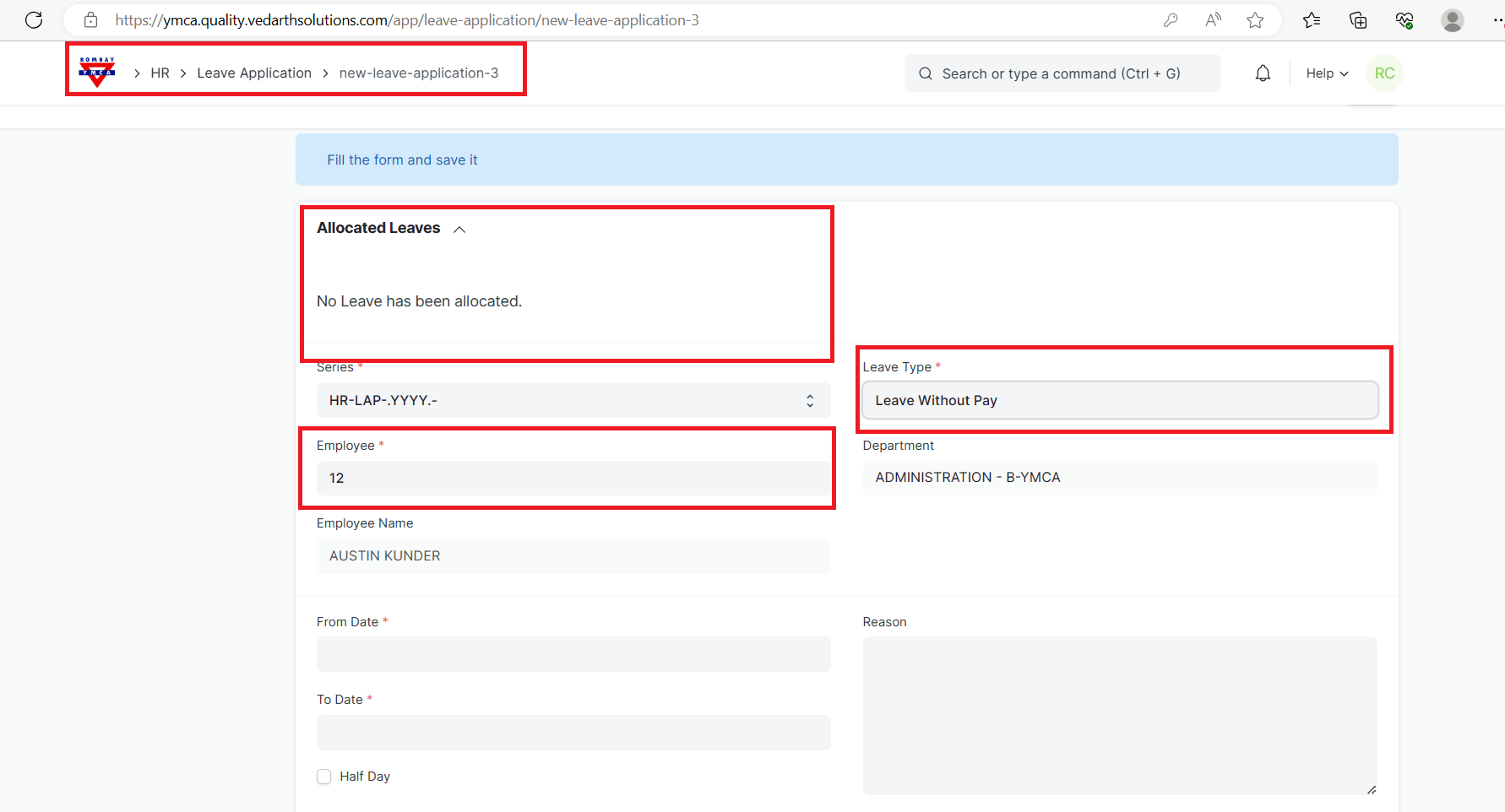
- A table of Allocated Leaves will be shown. Based on the Leaves taken, the available leaves are displayed for each Leave Type.
- Select the Employee Name and Leave Type.
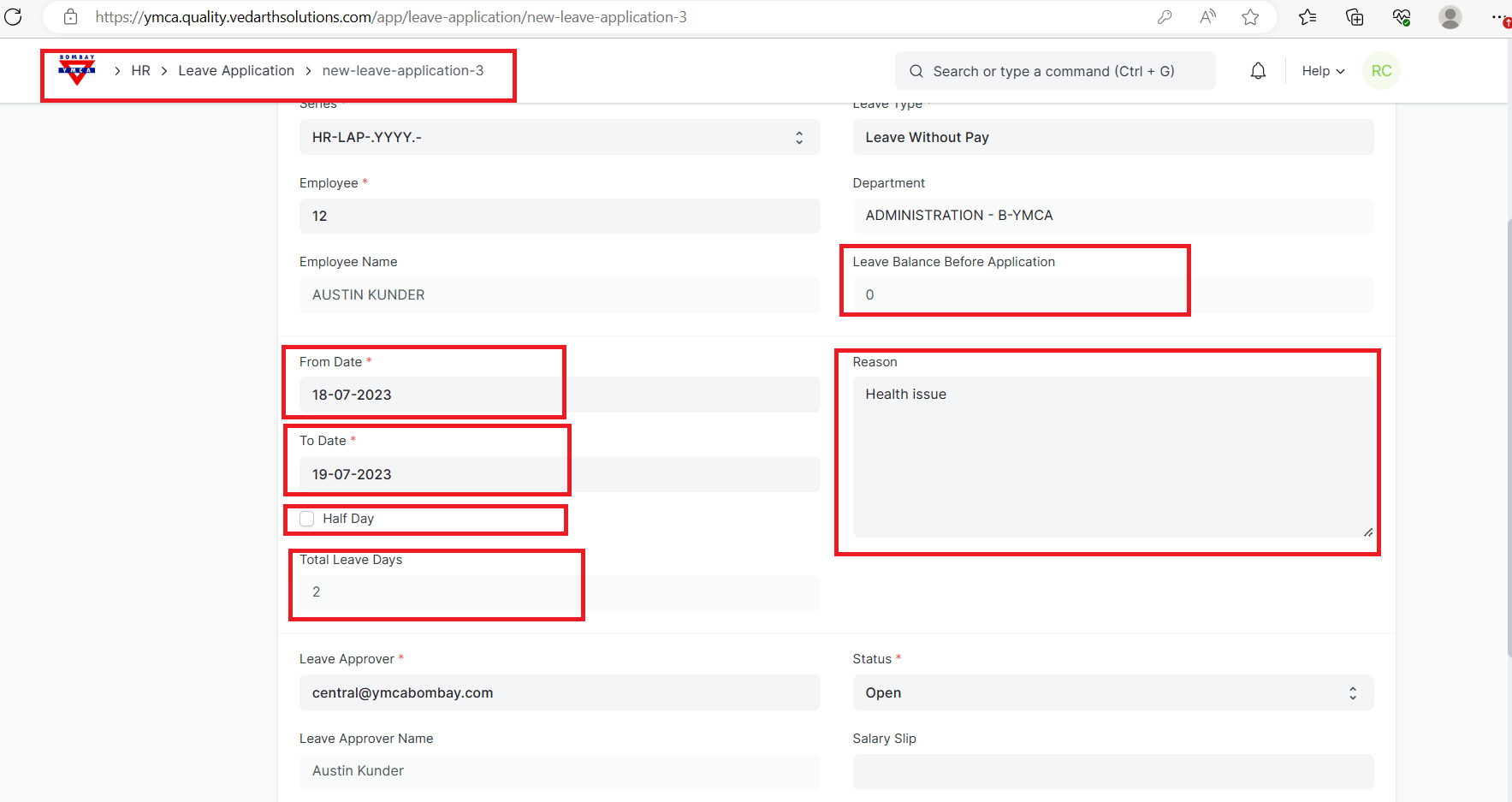
4.Set the Leave duration using From Date and To Date. Based on the dates selected, the 'Total Leave Days' and the 'Leave Balance Before Application' fields will be displayed.
5.If the Leave applied is for a half-day, select the 'Half Day' checkbox.
6.Enter the Reason for Leave.
7.Select Leave Approver.
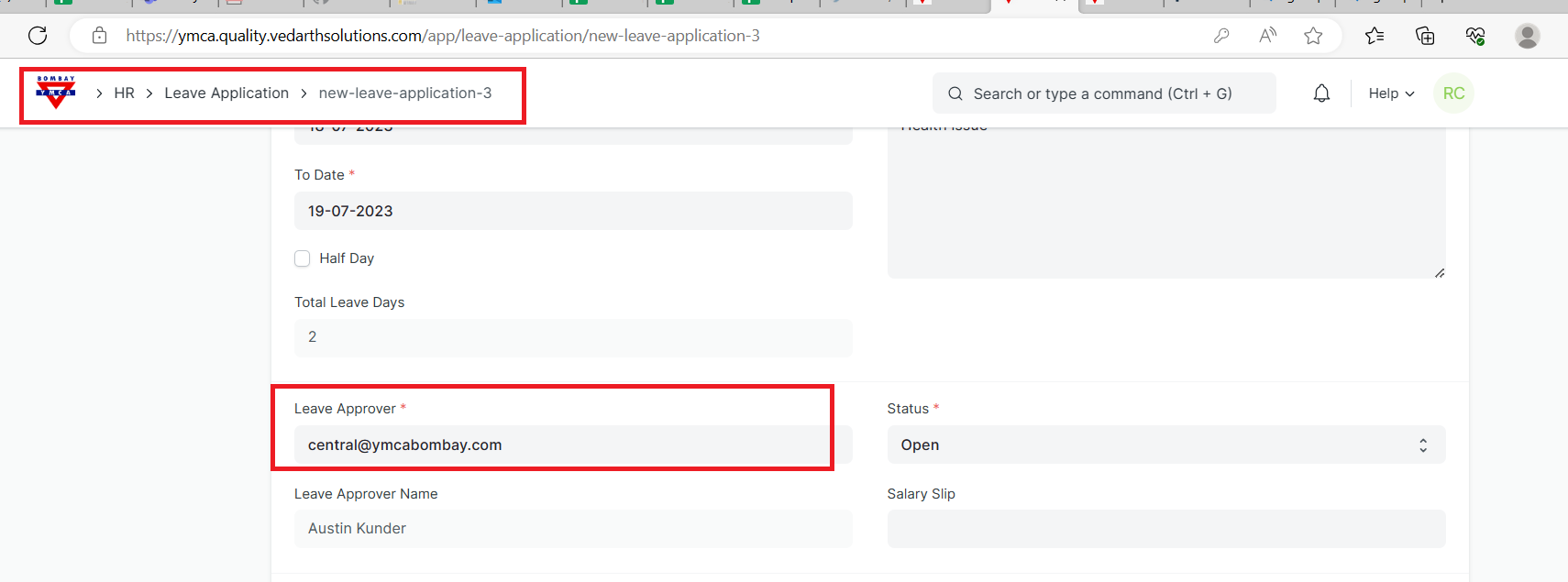
* Leave Approvers can be set at two levels: *
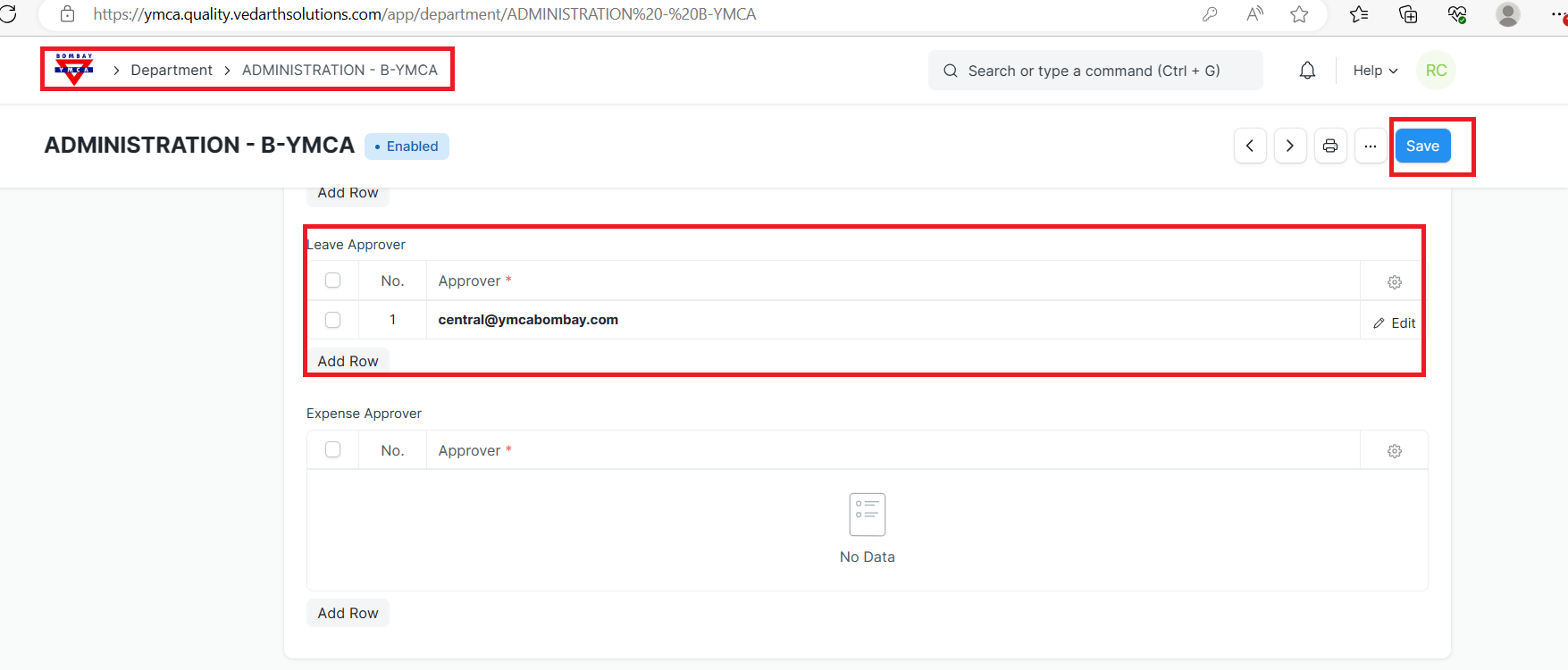
- Department Level: Leave Approvers for each department can be configured in the Department master. Multiple Leave Approvers can be set in a department. The first Leave Approver in the list will be considered as the default Leave Approver.
- Employee Level: Leave Approvers can also be set Employee-wise in the employee master.
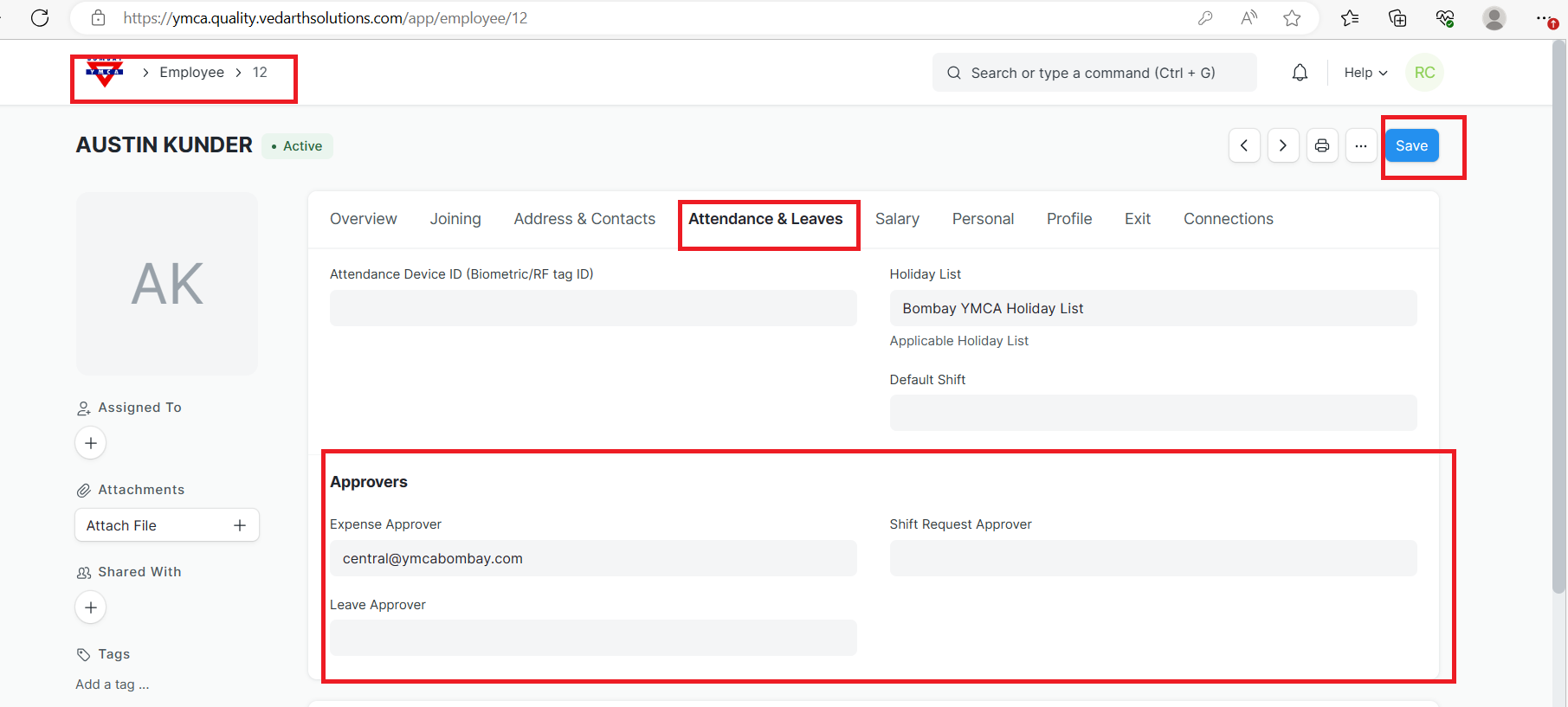
If Leave Approvers are set at both Employee-level and Department-level, the Employee-level Leave Approver will be considered as the default Leave Approver in this case.
8.Select the Posting Date of the Leave Application.
9.Check the 'Follow via Email' checkbox to send notification of the Leave Application to the Leave Approver.
10.You can also link the Salary Slip of the Employee in the Leave Application for the record.
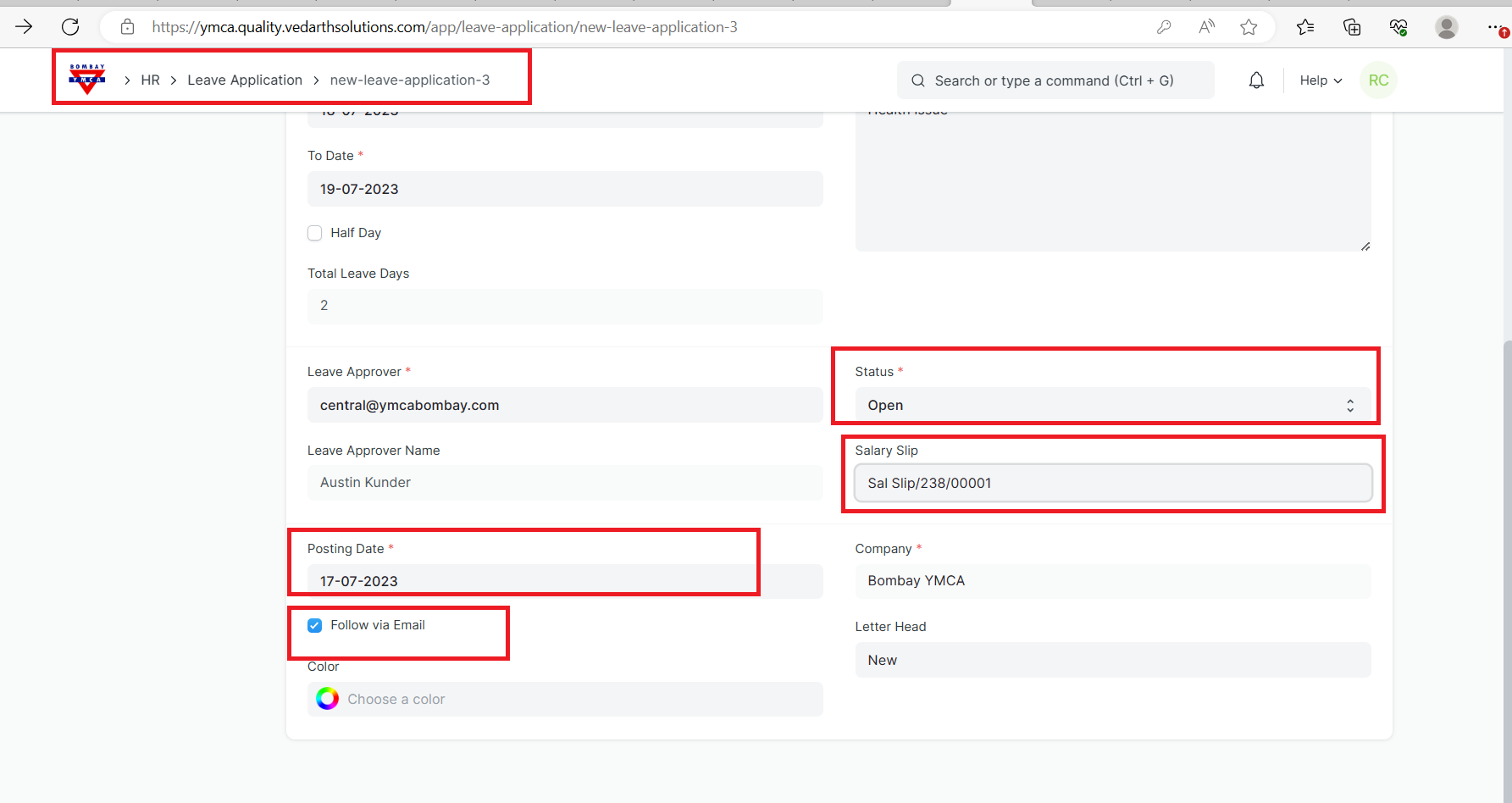
11.Click on Save. Once the Employee saves the Leave Application, the status of the Leave Application changes to 'Open', and an email is sent to the Leave Approver for approval. The Leave Approval Notification Template can be configured in HR settings under the Leave Settings section.
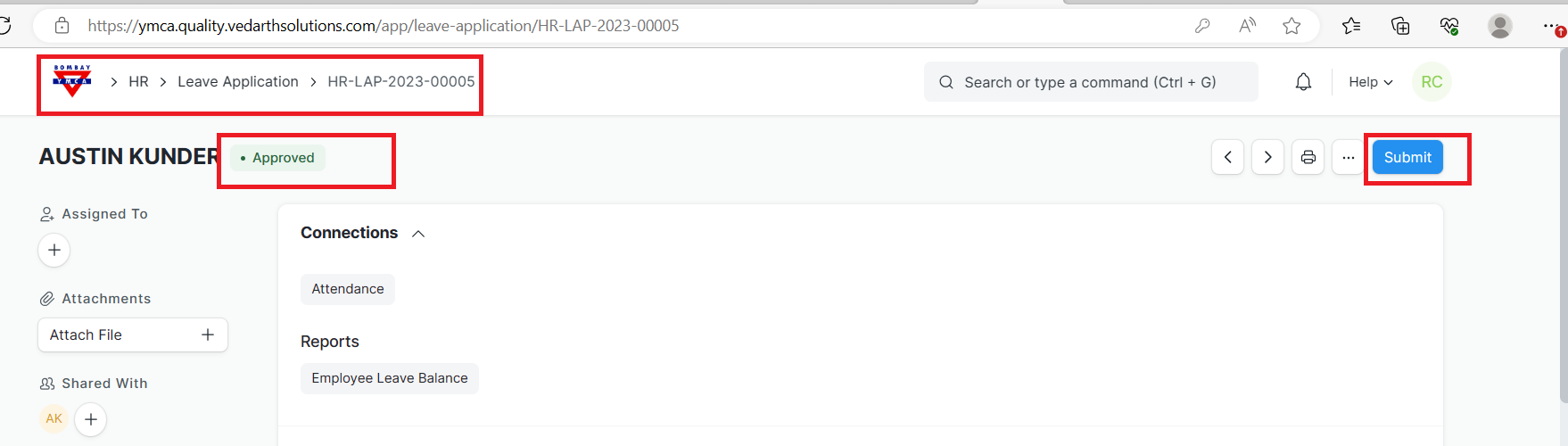
12.Once the Leave Approver receives the email, they can Approve, Reject, or Cancel the Leave Application. Once this is done, the Leave Approver can submit the Leave Application. On submission, the status of the document changes accordingly, and an email is sent to the Employee notifying them the same.
***End of the Document***
More articles on HR - Leave Application