Bombay YMCA - Employee Training
By Reshma TW on June 27, 2023
Beginner1] Training Event:
You can invite your employees to attend the event using this feature.
You can create a Training Program and schedule Training Event under it.
To access Training Event, go to:
Home > Human Resources > Training > Training Event
Before creating a Training Event, it is advisable you create the following documents:
- Training Program
- Employee
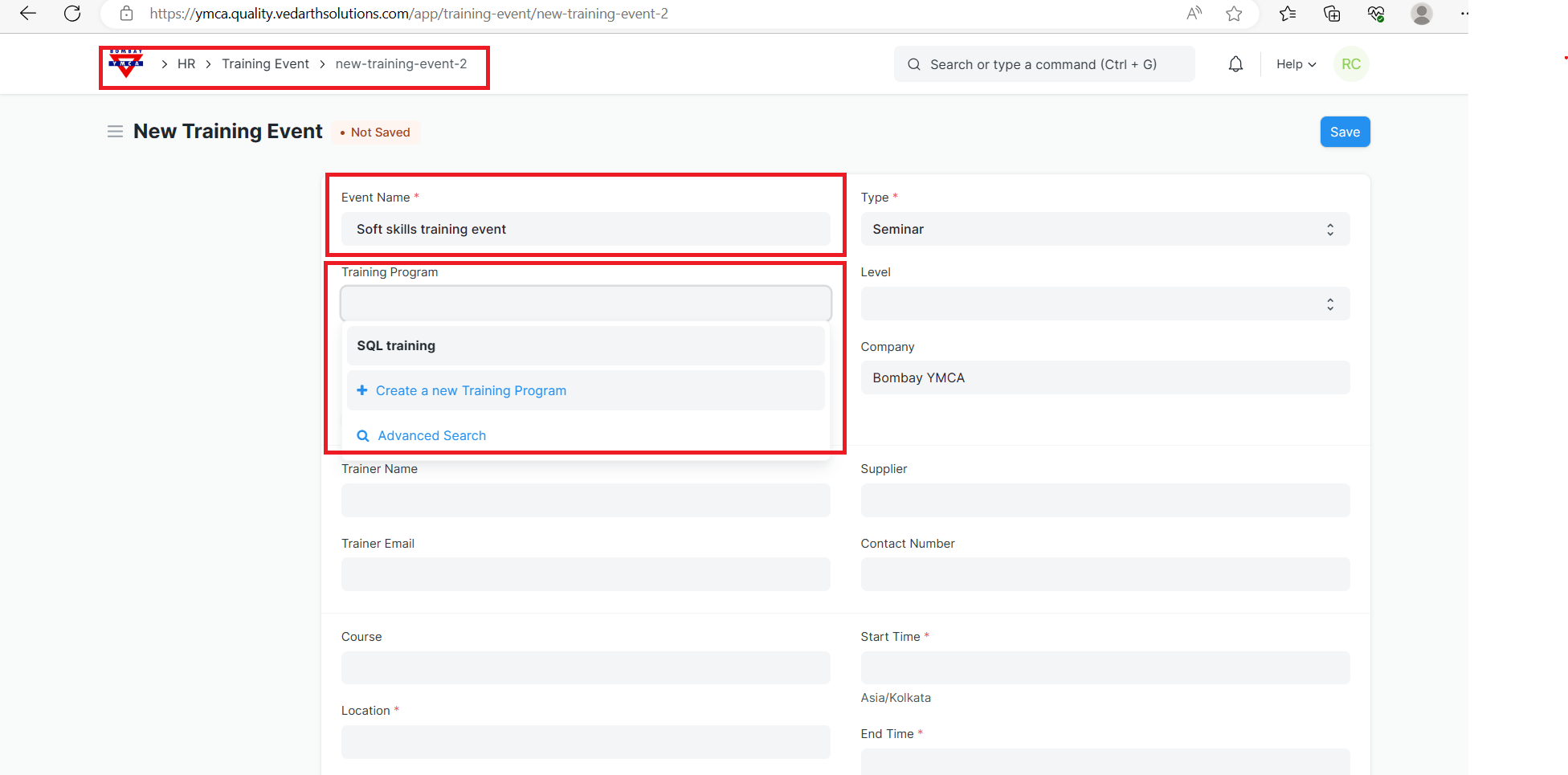
1.Go to the Training Event list, click on New.
2.Enter the Event Name & Training program.
2] How to create Training program:
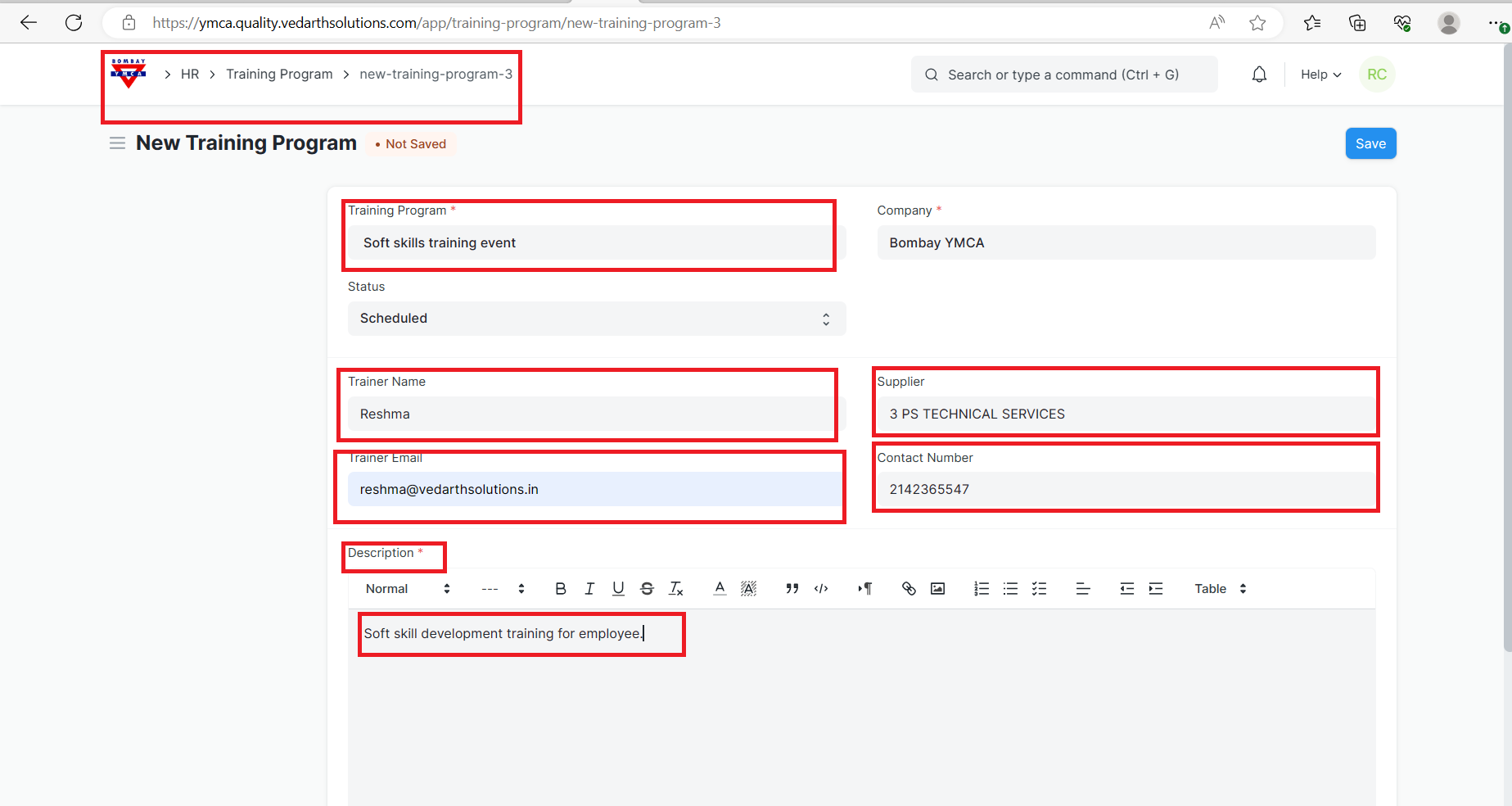
a] Enter the Training Program name.
b] Enter the Trainer Name, Trainer Email and Contact Number.
c] Select the Supplier (optional) in case an outside vendor/expert was called to conduct the training.
d] Additionally, you can also write a short description of the Training Program in the Description box (optional).
3]Select other fields:(Training Event)
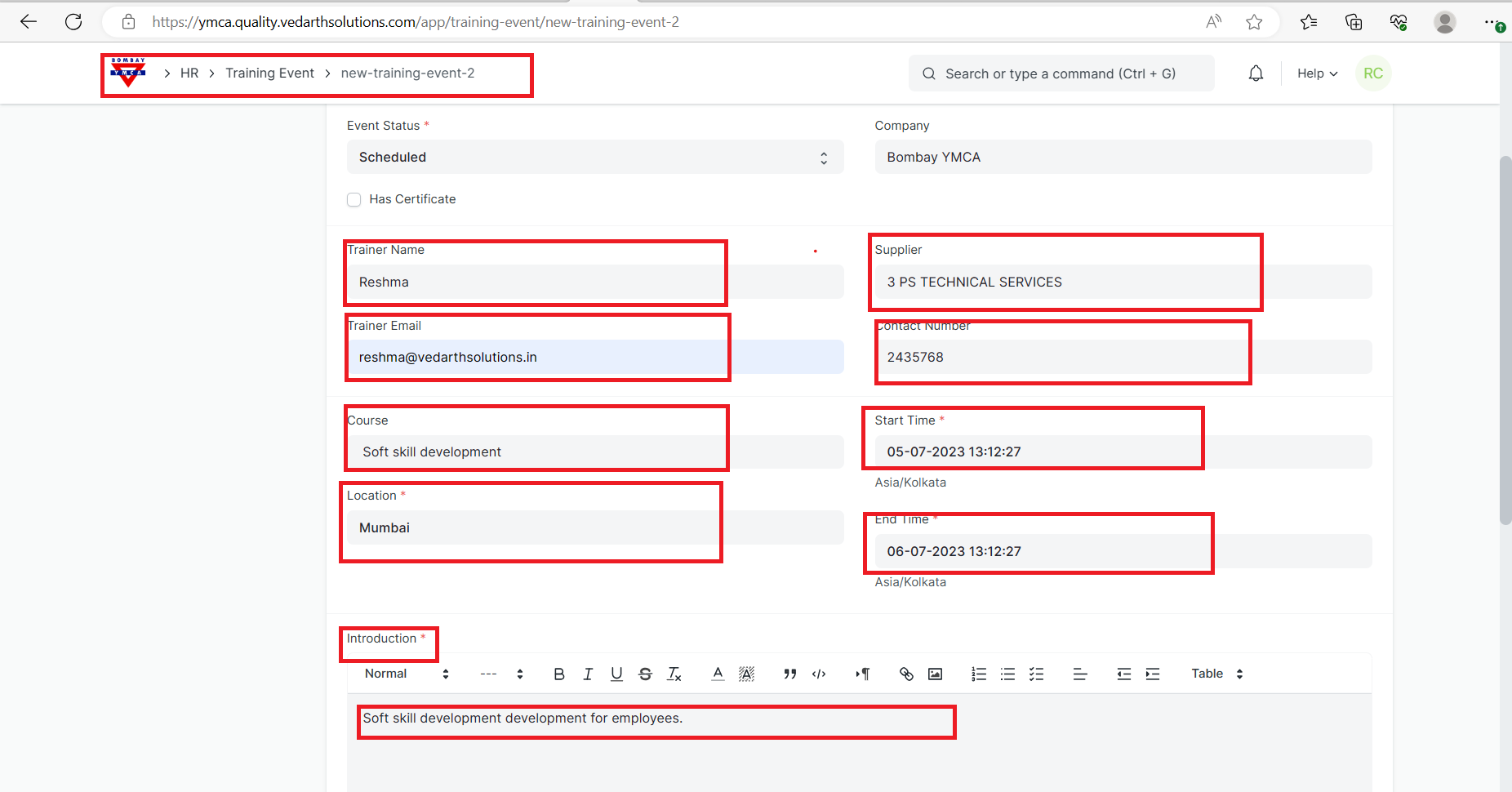
- Select Event Level (Beginner, Intermediate, Expert).
- Enter the Trainer Name, Email and Contact Number.
- Select the Event Course. Enter the Start Time, End Time and Location of the Training Event.
- Additionally, you can also write a short description of the Event in the Description.
- Save and submit.
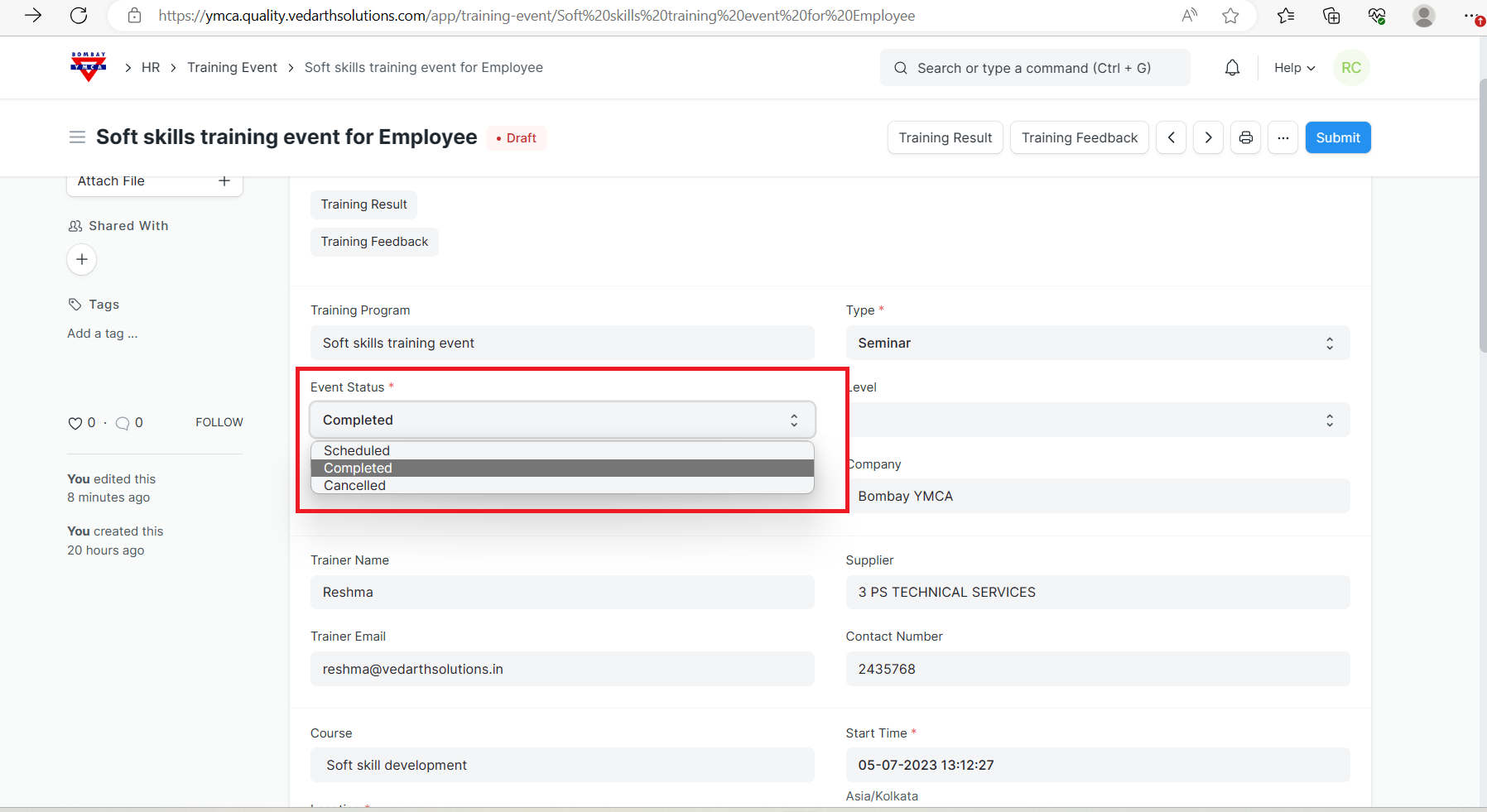
Note: By default, the Status of the Training Program is 'Scheduled'. However, you can change the status to 'Completed' or 'Cancelled' as per the requirement.
3]. Inviting Employees for the Event:
You can invite your employees to attend the Training Event by selecting the employees to be invited in the Employees table.
By default the status of the employee will be 'Open'.
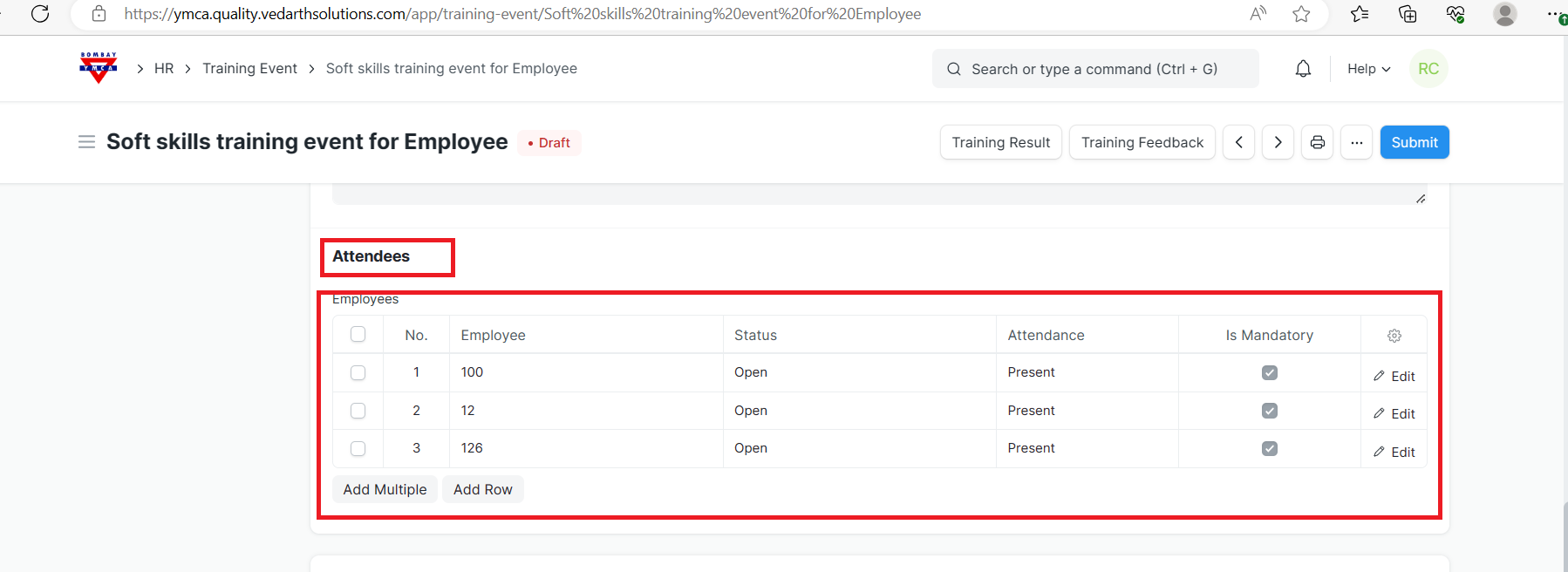
When you submit the Training Event, a notification will be sent to the employee notifying that the Training has been scheduled. This is sent via Email Alert "Training Scheduled". You can modify this Email Alert to customize the message.
4] Training Result:
After completion of the training event, employee-wise training results can be stored based on the evaluation done by the trainer.
- Go to the Training Result, click on New.
Note: You can also access Training Result through the Training Result list.
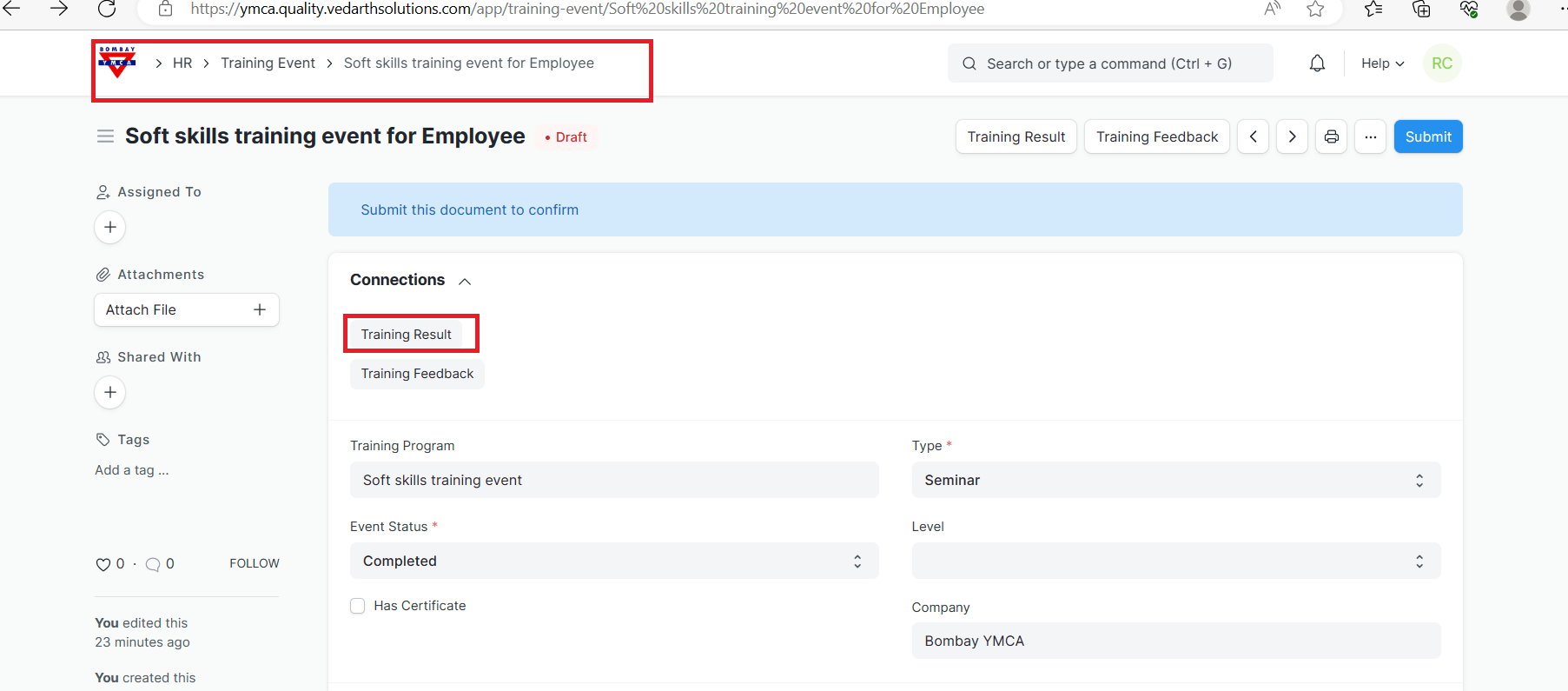
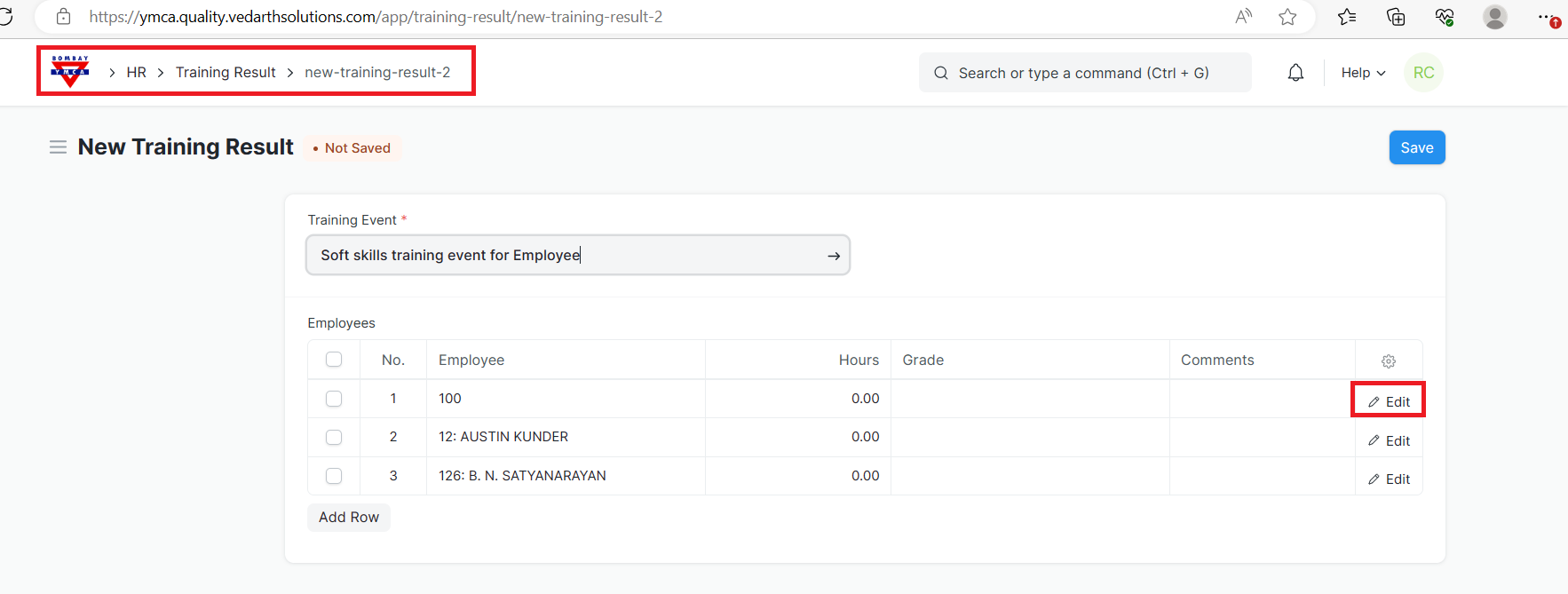
- Select Training Event and go to edit option of employee.
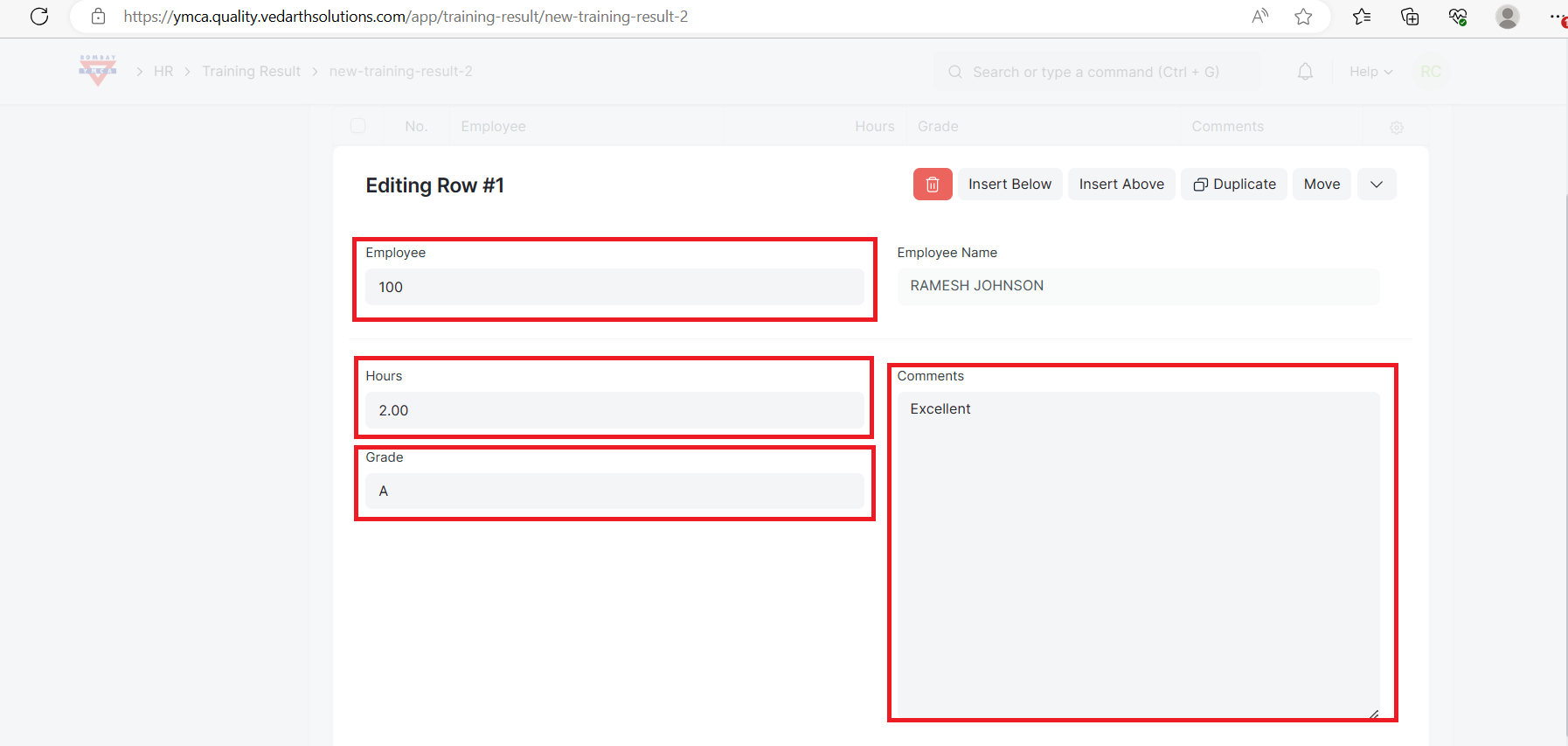
- Enter the Hours, Grade and Comments against the Employee Name.
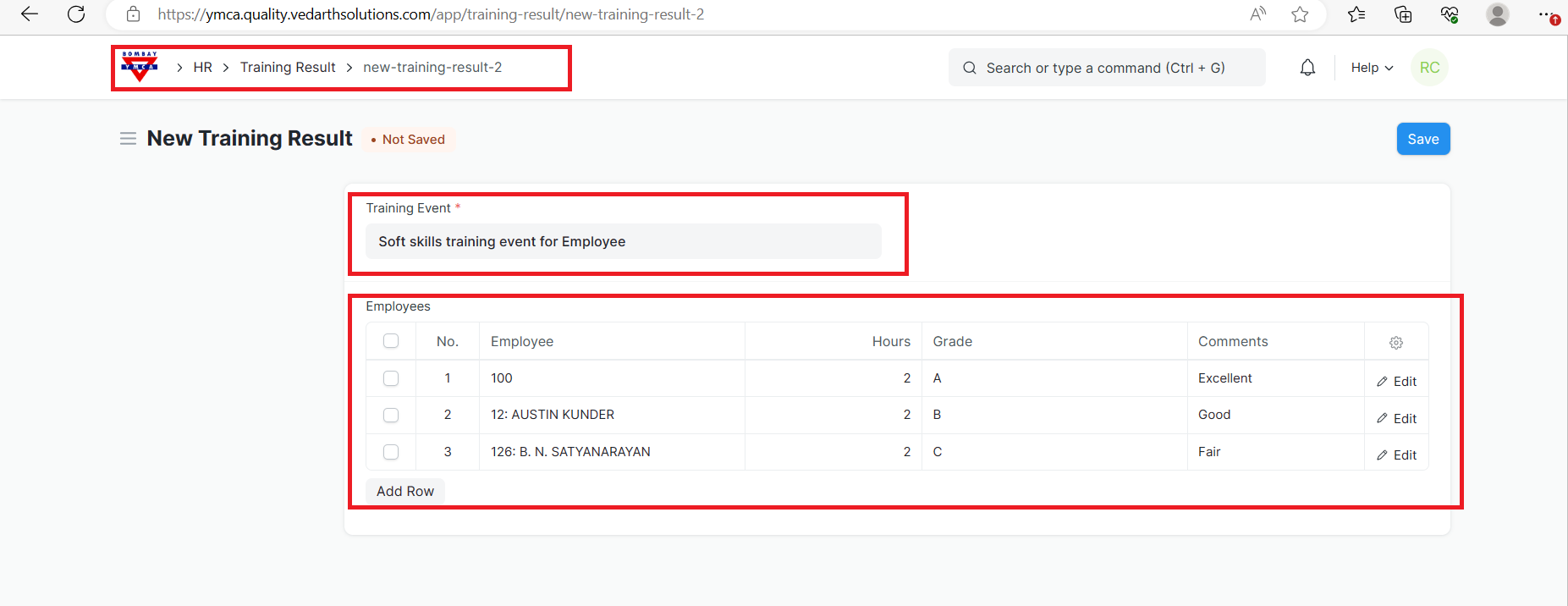
- Save and Submit the Training Result.
When the Training Result is submitted, all the employees will receive an email notifying them that they must share their feedback via Training feedback. This is also managed via an Email Alert, so you can customize this alert too.
5] Training Feedback:
After completion of the training, employees can share their feedback via Training Feedback.
- Go to the Training Feedback, click on New.
Note: You can also access Training Feedback through the Training Feedback list.
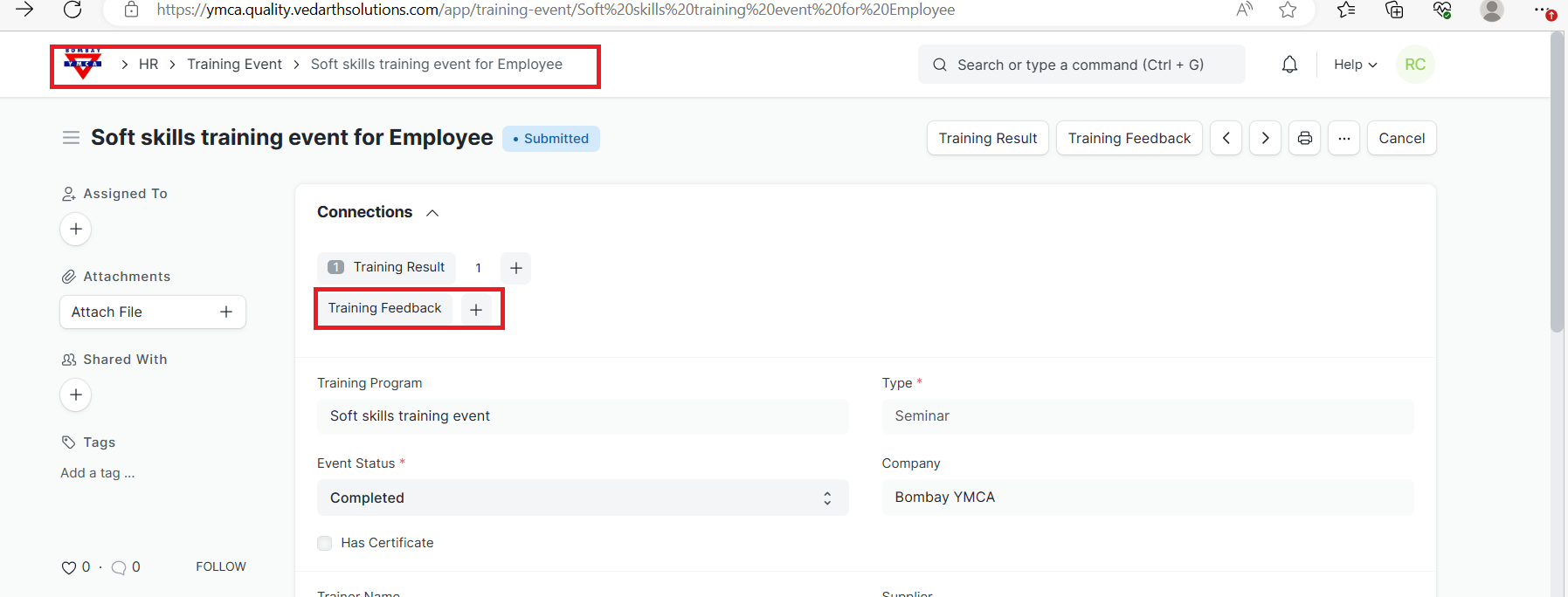
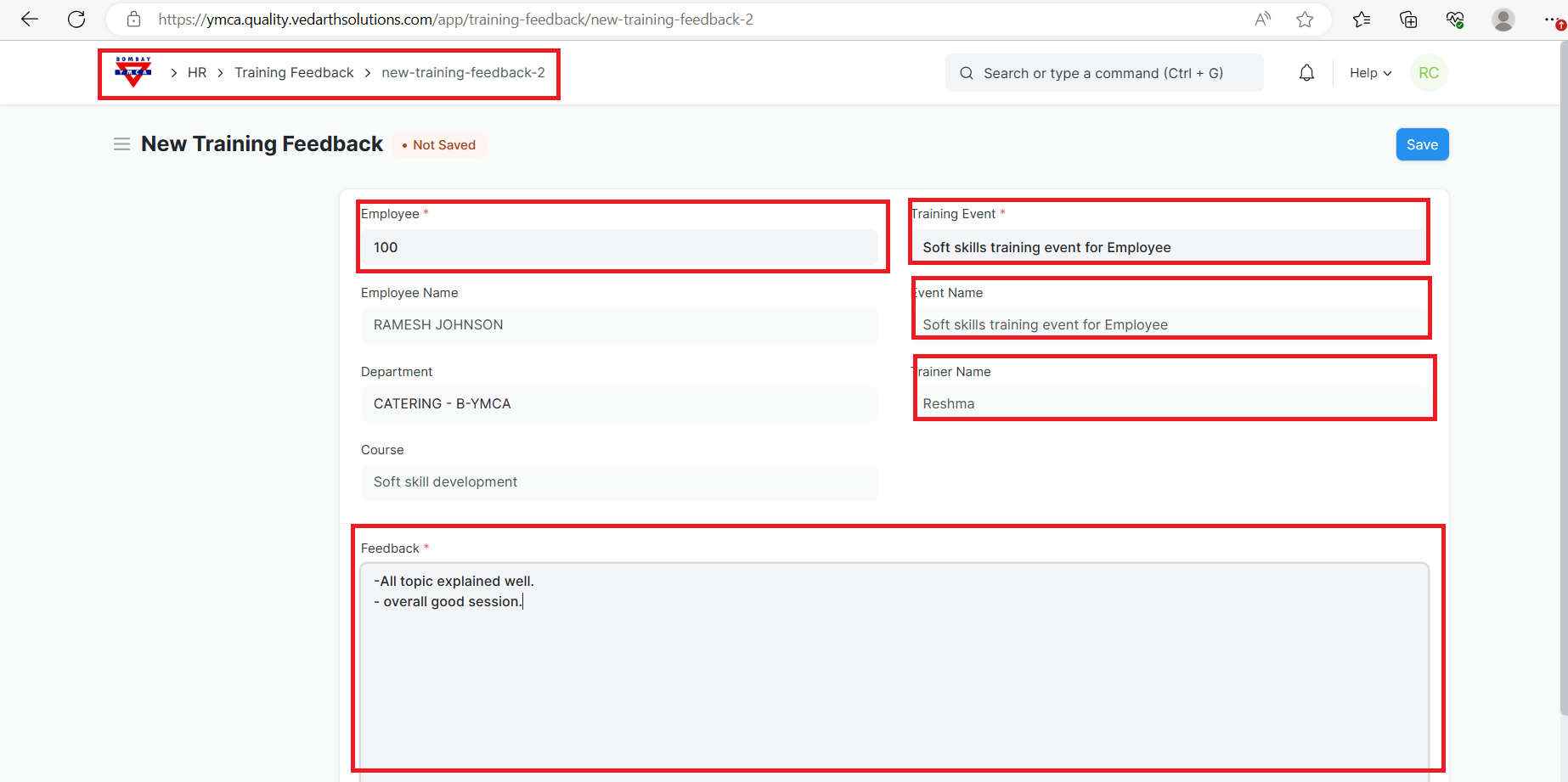
- Select the Employee.
- Select the Training Event. Based on that, the corresponding Event Name, Course and Trainer Name will get fetched.
- Enter the feedback in the Feedback box.
- Save and submit.
***END OF THE DOCUMENT ***
More articles on ERP Documentation